On first launch, select Use this folder if the suggested location contains your replays, or Choose another folder to select their location.
Let the library populate, then select a match. Start with Heroes & units for an overview of each player's army and abilities.
To watch the match, use Watch replay. This requires Warcraft III, a compatible game version and the matching map on your computer.
Example: a replay a friend sent you
Save practice-match.w3g into a folder you added to the app. The library picks up new files automatically. Search for practice-match and select it to open the analysis.
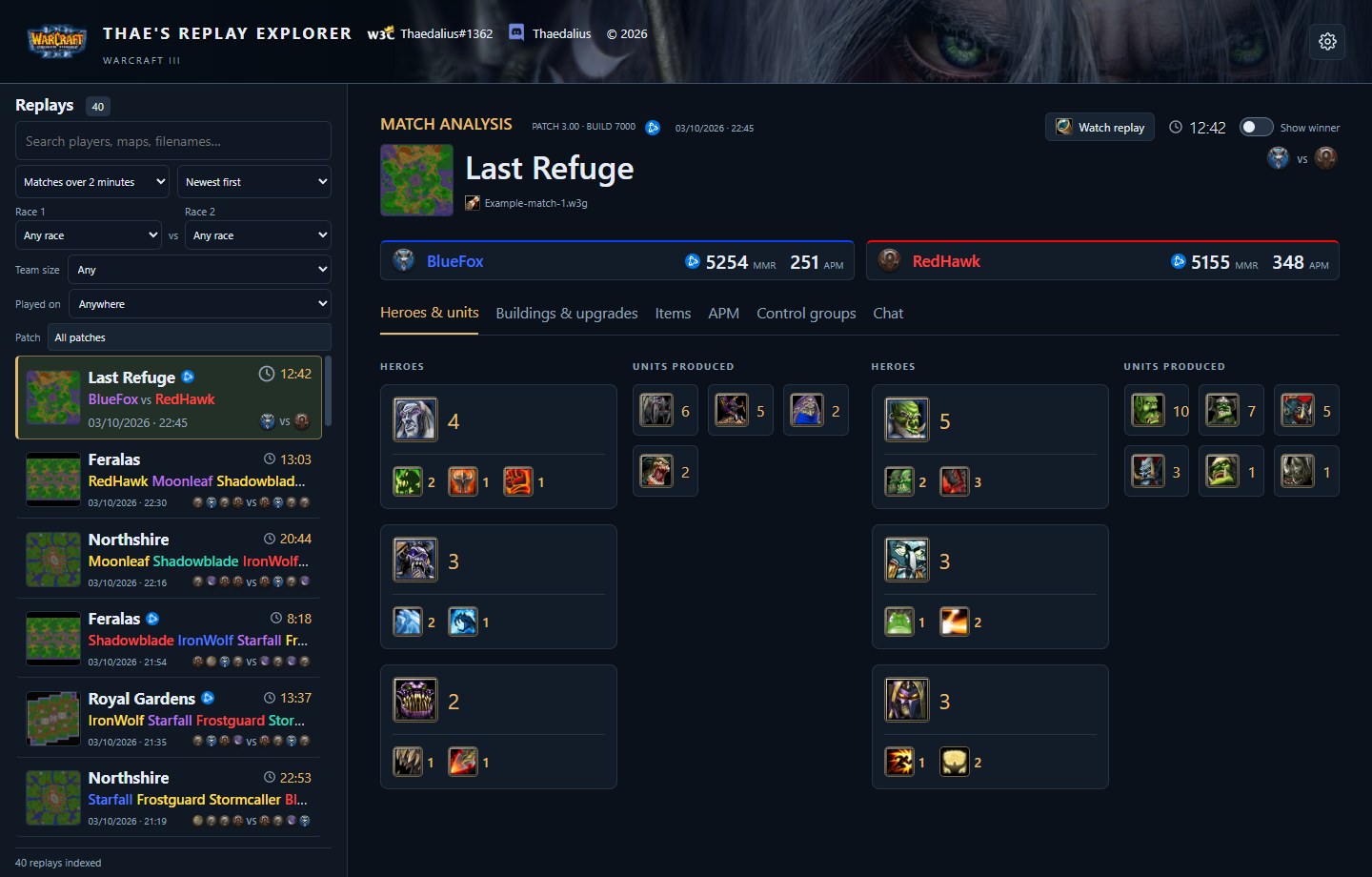
Heroes & units gives you a side-by-side overview before you examine individual timings. Click the image to enlarge.
If the replay does not appear
Check that its folder is enabled and that Include subfolders is on if it is nested deeper. Clear library filters, including the short-game and patch filters. A damaged or unsupported replay may not parse; a future patch can require an app update.
02 / YOUR LIBRARY
Where to find Warcraft 3 replay files
The app looks for the Warcraft III BattleNet folder under your Windows Documents folder. Account-specific replays can be deeper in that tree. Your Documents folder may be redirected to OneDrive or another drive, so use File Explorer to find the actual location.
A typical starting point
Documents → Warcraft III → BattleNet
Choose this parent folder and enable Include subfolders to cover account folders beneath it. Downloaded replays may instead be in Downloads or a folder you chose yourself.
Open Settings using the gear in the top-right corner.
Under Replay folder, select Choose folder and pick a location containing .w3g files.
Enable Include subfolders to scan nested folders.
For separate locations, expand Advanced settings and use Add folder. Each location has its own enabled and subfolder controls.
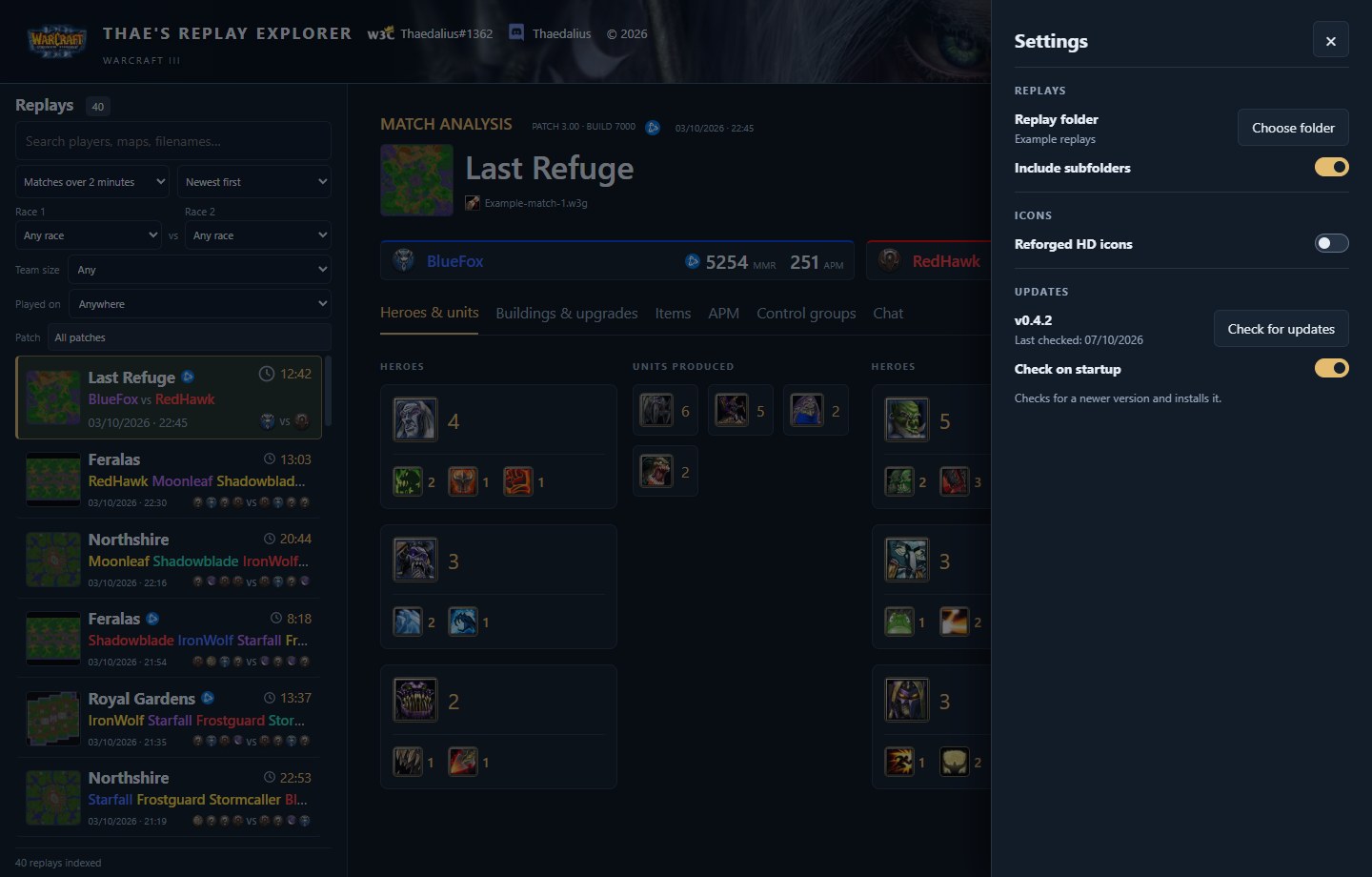
The replay-folder controls. This screenshot shows an earlier app version; newer settings include additional options. Click the image to enlarge.
Battle.net and W3Champions in one place
Add every location where you save matches, then use the Played on filter to separate Battle.net and W3Champions games. The app identifies the platform from replay data, not the filename. Renaming a file will not change its platform.
03 / OPENING DECISIONS
How to compare Warcraft III build orders
The Build orders tab lists each player's units, heroes, buildings and research chronologically for the first five minutes. Use Buildings & upgrades to explore building and research timings later in the match.
Select two matches with the same race and a similar matchup. Note the map and game patch; openings can change with either.
Open Build orders and compare the sequence of your first hero, production buildings and tier upgrades.
Look for the first meaningful difference, then watch that part of the replay to understand why it happened.
Use the per-player text or image export to keep the opening beside your practice notes.
Worked example: a later tech timing
These are illustrative timings, not a recommended build or measurements from the screenshot.
Compare a reference replay with a practice match
Checkpoint
Reference
Practice
Difference
Tier 2 order
2:40
3:05
25 seconds later
Second hero order
4:10
4:45
35 seconds later
Review the lead-up to 2:40. Was there extra unit production, an expansion, or pressure at home? The timestamps identify where to look; they do not establish the cause.
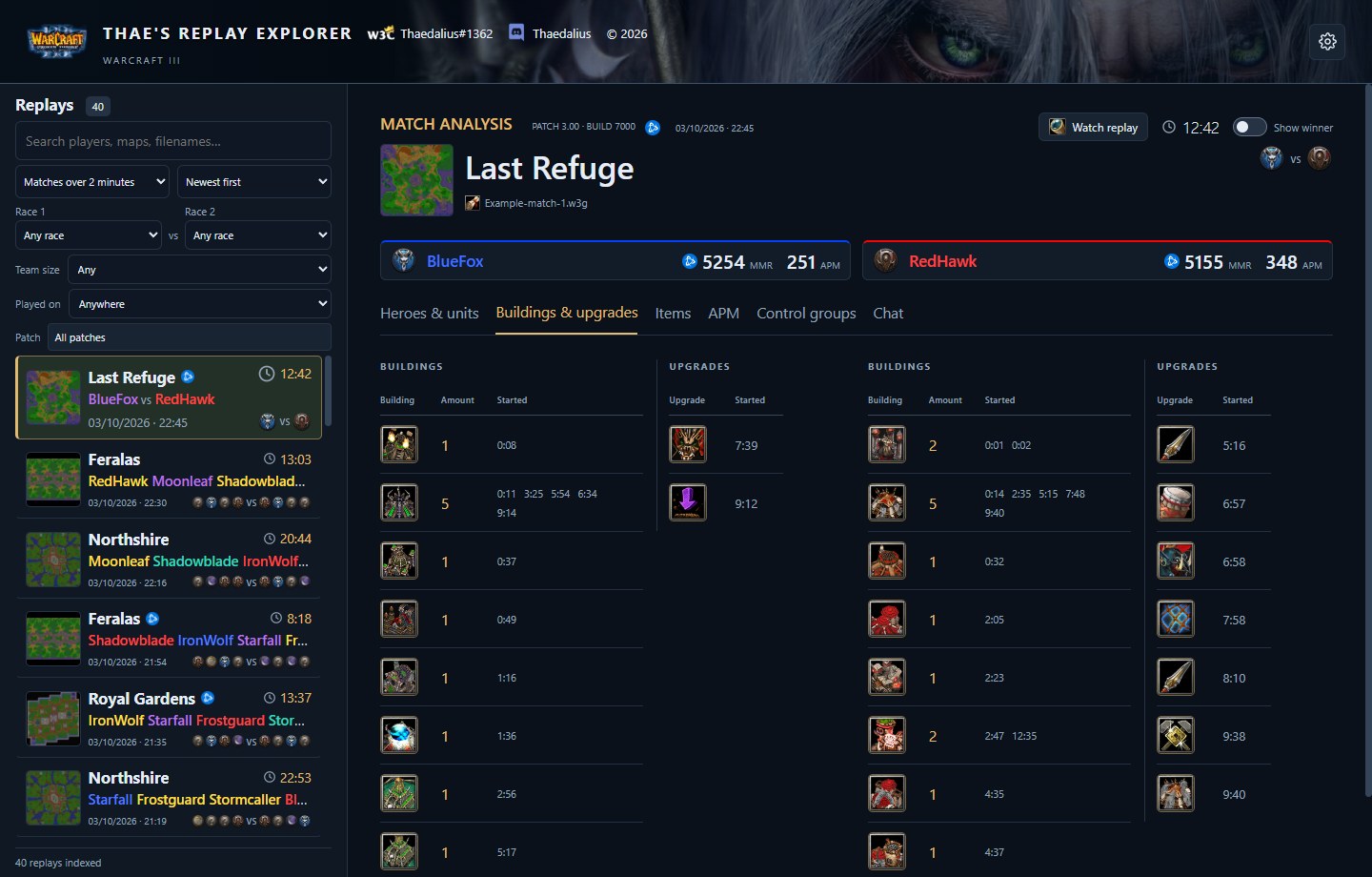
Building and upgrade timings help you connect an opening to later technology choices. Click the image to enlarge.
04 / READ THE MATCH
How to read APM in a Warcraft 3 replay
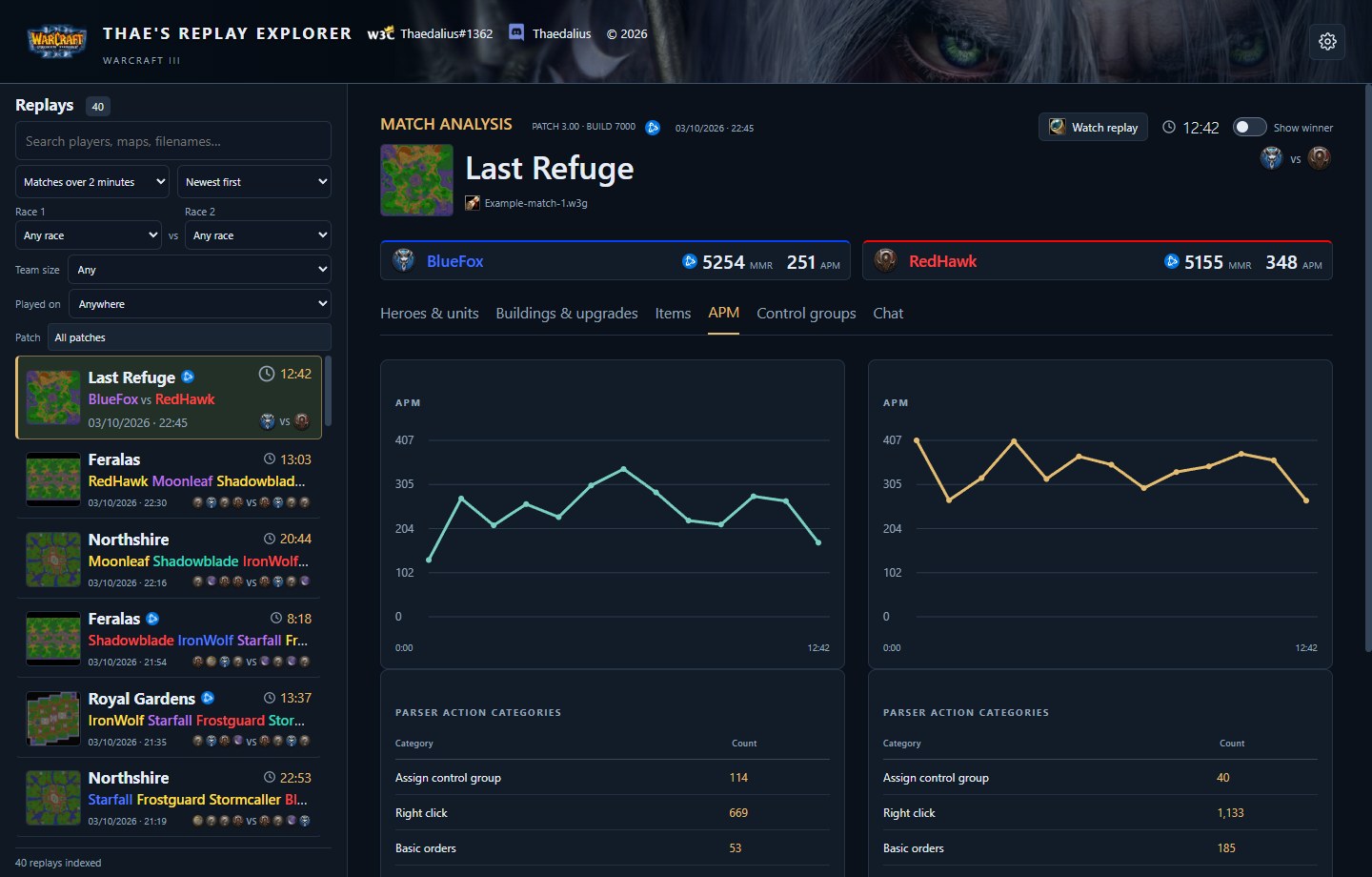
APM means actions per minute. The graph helps locate changes in activity across the match, but a high value does not by itself demonstrate better decisions or more effective play. Repeated inputs can contribute to activity.
Open the APM tab and compare each player's graph over the same period.
Identify a spike or a quieter stretch, then note its match time.
Watch that section of the replay. Check whether the player was fighting, managing the base, travelling or repeatedly issuing commands.
Use the other analysis tabs to add context: a new hero, a technology order or chat may help explain the moment.
Use the shape of the graph to choose moments to review, rather than judging the match by one average. Click the image to enlarge.
Example review question
“My activity rises around 6:00. During that fight, did I keep producing units and protect my hero?” Review the replay at that time, then write down one concrete adjustment. APM alone cannot answer the question.
05 / SAVE & SHARE MATCHES
Save a useful replay and share it on Discord
Keep matches you want to learn from, then send the actual .w3g file to a friend or coach. A replay attachment lets them inspect the match in Thae's Replay Explorer or watch it in a compatible Warcraft III installation.
Version availability
The copy-file icon and dragging replays out of both list views are in the current development build and planned for the next release. They are not in the public v0.6.0 download yet. In v0.6.0, click the replay filename to reveal it in File Explorer, then drag the file from Explorer into Discord.
1. Keep the match and add a review note
Select a replay and click the favorite star so you can find it again.
Expand Notes under the match header. Record a timestamp and one question you want answered; notes save automatically.
Use the favorites or notes filter beside the library heading, or search the words in your note.
Favoriting a replay bookmarks it; it does not make another copy of the replay file. Keep the original .w3g file in your replay folders.
2. Copy the replay into Discord
Select the match. Beside its filename, click the copy icon (two overlapping sheets). Hover over it to see the explanation.
Wait for Replay copied. This copies the file to the Windows clipboard, not just its name or path.
Switch to the Discord conversation or channel where you want to share it and press Ctrl+V.
Review the attachment, add your message and send it yourself. Copying in the app does not upload or send anything.
practice-match.w3g
Illustrated control: click the overlapping sheets next to the filename, then paste in Discord with Ctrl+V.
3. Or drag the replay straight into the conversation
Open Discord alongside Replay Explorer, then choose whichever starting point is easiest:
Detailed list: drag the replay row from the library on the left.
Classic explorer view: expand the folder and drag the replay's filename from the list. Drag a replay, not the folder heading.
Match header: drag the filename of the open replay.
Drop it into Discord's message area, review the attachment and send. List dragging uses the replay you grabbed, even if a different match is selected. A normal click still selects a replay; double-click still opens playback. Clicking the match-header filename still reveals the file in Explorer.
Example: ask for a focused review
Favorite your match and write this in Notes:
6:00 — first big fight. Did I position my hero too far forward?
Copy or drag the replay into Discord and type the same question beside the attachment. Your local notes are not embedded in the .w3g file, so include the question in the message if you want the recipient to see it.
Share the opening, or back up your collection
Choose what to send or save
What you need
Use
What it contains
A complete match
Copy icon or replay drag
The original .w3g replay, including recorded player names and chat
A player's opening
Build Order text or PNG export
That player's first five minutes of command-derived build-order entries
Favorites and review notes
Settings → Advanced settings → Export annotations
A JSON backup of annotations; replay files are not included
To restore annotations on another computer, transfer the replay files too, then use Import annotations. Annotations are matched to identical replay content.
If paste or drag does not attach the file
Clipboard and file-drop support depends on the receiving app. If Ctrl+V does nothing, try dragging; if that fails, click the replay filename to reveal it in File Explorer and use Discord's attach-file control. If Replay Explorer says the file is missing, locate or restore the original replay first. Copying another item replaces the clipboard, so copy the replay again before pasting.
Sharing transfers the replay through Discord or the receiving app. Thae's Replay Explorer itself does not upload it or create a public download link.
Ready to review your next match?
Start with one replay and one question you want to answer.